How to Use AI Voices Effectively in Video Tutorials
According to research published by BERA, AI-generated instructional videos can lead to significantly higher retention performance compared to traditional recorded videos, highlighting the effectiveness of AI narration in learning contexts. Yet the quality gap between well-executed and poorly implemented AI voices can mean the difference between a tutorial that truly teaches and one that simply talks. As AI voice technology becomes more sophisticated and accessible, knowing how to use it effectively isn’t just an advantage—it’s essential for creating tutorials that actually help people learn.
How to choose the right AI voice
Selecting the right AI voice sets the foundation for your entire tutorial. This decision affects how professional your content sounds, how well learners engage with it, and whether they trust the information you're providing.
- Start by considering your audience and subject matter. A tutorial teaching advanced software development might benefit from a professional, measured voice that conveys technical expertise. Meanwhile, a beginner's guide to social media could use a friendlier, more conversational tone that puts new learners at ease.
- Listen to voice samples before committing. Most AI voice platforms offer preview options—use them. Play sample narration at the pace you'll actually use in your tutorials, not just short demo clips. Pay attention to how the voice handles technical terms, numbers, and transitions between ideas.
- Gender, accent, and age perception all influence how learners respond to your tutorials. There's no universally "best" choice, but consistency matters. If you're building a tutorial series, stick with the same voice throughout so learners can focus on content rather than adjusting to new narrators.
- Test your chosen voice with a small segment of your actual script. Generic samples tell you how a voice sounds in isolation, but your specific content—with its unique terminology and pacing—reveals whether that voice truly works for your needs. Platforms like WowTo make this testing process straightforward by letting you generate and preview narration quickly within your workflow.
- Consider clarity over personality. A slightly less expressive voice that pronounces everything perfectly beats a characterful voice that mangles technical terms. Your learners need to understand every word clearly, especially when following complex instructions.
Where to Use AI Voice in Tutorials
Knowing when to use AI narration and when to let visuals speak for themselves is crucial for effective tutorials. Strategic placement of voice makes information easier to process and prevents cognitive overload.
- Tutorial introductions benefit significantly from AI voice. Use narration here to establish context, explain what learners will accomplish, and set expectations. A 15-30 second voiced introduction helps orient viewers and gives them a clear mental framework for what's coming. This is where you build trust and engagement before diving into procedural content.
- Step-by-step instructions are where AI voice delivers the most value. As you demonstrate each action on screen, voice narration confirms what learners should do, why they're doing it, and what to expect next. The combination of visual demonstration and verbal explanation reinforces learning through multiple channels. Keep narration closely synchronized with on-screen actions—when you say "click the Settings button," that click should happen simultaneously or within half a second.
- Complex procedures sometimes require a different approach. When showing intricate workflows with multiple simultaneous elements, consider using voice to introduce the process, then letting the visual demonstration play with on-screen text annotations. Resume voice narration to summarize or transition to the next major step. This prevents overwhelming learners who need time to observe and absorb detailed information.
- Section summaries and transitions help learners consolidate what they've learned before moving forward. Brief voiced summaries between major tutorial segments give viewers mental breathing room and reinforce key takeaways. These don't need to be long—even a single sentence like "Now that you've configured the basic settings, let's customize the advanced options" helps maintain flow and context.
- Conclusions should always include voice narration. This is your opportunity to recap what learners accomplished, suggest next steps, and encourage them to apply what they've learned. A strong-voiced conclusion provides closure and motivation, increasing the likelihood that viewers will actually implement the skills you've taught.
- Skip voice narration during moments that require viewer observation. If you're showing a process that unfolds over several seconds and needs visual focus—like watching an animation render or observing how elements interact—let the visuals play without competing audio. You can add subtle background music if silence feels awkward, but keep it minimal.
Best practices for tone, pace, and clarity
The technical execution of your AI voice determines whether learners can easily follow along or struggle to keep up. Small adjustments in these three areas create dramatically different learning experiences.
- Tone should match your content and audience expectations. For professional training and business software tutorials, maintain a neutral to slightly formal tone that conveys competence without feeling stiff. Educational content for students can lean slightly more casual while still maintaining clarity. Creative tutorials about design, video editing, or artistic processes often work well with warmer, more encouraging tones. Whatever tone you choose, keep it consistent throughout individual tutorials and across series.
- Pace directly impacts comprehension. Most tutorial creators make their AI voices speak too quickly because they know the content intimately and underestimate how much processing time learners need. A good baseline is 140-160 words per minute for general tutorial content, slower for complex technical material, and slightly faster only for review sections with familiar concepts. When explaining new terminology or multi-step procedures, deliberately slow down the speech rate. Learners can't rewind real-time demonstrations as easily as they can reread text, so giving them time to absorb information prevents frustration.
- Add strategic pauses between sentences and major steps. A one to two-second pause after introducing a new concept or before moving to the next step gives learners' brains time to process what they just heard and saw. These brief silences feel natural and professional, not awkward. They also provide clear segmentation that helps viewers mentally organize information.
- Clarity depends on word choice and pronunciation accuracy. Write scripts using simple, direct language. Replace "utilize" with "use," "in order to" with "to," and "at this point in time" with "now." Conversational language sounds natural when AI voices speak it aloud and reduces the cognitive load on learners trying to follow instructions while performing tasks.
- Preview every tutorial for pronunciation issues. AI voices have improved dramatically, but they still stumble on certain terms, acronyms, and product names. Most platforms let you adjust pronunciation through phonetic spelling or alternative text. Make these corrections before publishing—nothing undermines credibility faster than a tutorial where the AI voice can't pronounce its own subject matter correctly.
- Emphasize key information through strategic pauses and sentence structure rather than trying to force artificial vocal stress. Place important terms or actions in short, standalone sentences. "Click Save" has more impact than "After you've made all your changes, go ahead and click the Save button." The concise version is easier for AI voices to deliver naturally and automatically emphasizes the critical action.
Mistakes to avoid with AI voice
Common AI voice mistakes sabotage otherwise solid tutorials. Recognizing these pitfalls helps you avoid them from the start and make your AI voices work effectively.
- Mismatched synchronization between voice and visuals is the most frequent and damaging error. When AI narration describes an action before or after viewers see it happen, confusion results. Learners don't know whether to focus on what they're hearing or what they're seeing, and they often miss critical steps entirely. Always preview your complete tutorial and verify that every voiced instruction aligns precisely with its visual counterpart. If you edit your video after adding AI narration, recheck synchronization in the affected areas.
- Overnarrating exhausts viewers and makes tutorials feel patronizing. You don't need your AI voice to verbally describe every single element visible on screen. If your visual demonstration clearly shows someone hovering over a button and clicking it, you don't need the AI voice to narrate "Now I'm moving my cursor toward the button, and I'm clicking on it." Simply having the AI voice say "Click the Export button" while demonstrating suffices. Trust your visuals to communicate obvious actions and reserve AI narration for clarifying intent, introducing new concepts, and guiding attention to specific elements.
- Inconsistent audio quality across a tutorial sounds unprofessional and distracts learners. This often happens when creators make piecemeal edits, regenerating individual sentences with AI voices without ensuring they match the surrounding audio's pace and tone. When you need to revise narration, regenerate entire paragraphs or sections rather than single sentences. This maintains natural flow and consistent audio characteristics.
- Ignoring technical pronunciation is particularly problematic in specialized tutorials. If you're creating content about specific software, frameworks, or technical concepts, research correct pronunciation before generating AI narration. Saying "sequel" for SQL or "gooey" for GUI might be common, but if your audience expects a different pronunciation, hearing the "wrong" version from your AI voice damages credibility. Understanding how AI voices compare to human narrators can help you appreciate where AI excels and where it needs careful guidance.
- Monotonous delivery occurs when you don't vary sentence structure and length in your script. If every sentence follows the same pattern and length, even the best AI voice sounds robotic. Mix short, direct instructions with slightly longer explanatory sentences. Vary your sentence beginnings—don't start every instruction with "Now" or "Next." This natural variation keeps learners engaged and makes information easier to process, even when delivered by AI voices.
- Neglecting accessibility means missing opportunities to serve all learners effectively. AI voices can significantly improve accessibility when implemented thoughtfully, but only if you consider diverse learning needs from the start. This includes adequate pacing, clear pronunciation, and descriptive language that doesn't rely solely on visual cues.
How to combine AI voice with screen recordings
The integration between AI voice and screen recordings determines whether your tutorial feels cohesive and professional or disjointed and amateur. The right approach makes this combination seamless and helps you use AI voices effectively.
- Plan your narration script before recording your screen. Write a complete script that outlines exactly what your AI voice will say and when. This preparation ensures your screen recording naturally matches your narration rhythm. You'll know which actions need more demonstration time because the AI narration is lengthy, and which can move quickly because the voice instruction is brief. This planning prevents the common problem of visuals and audio fighting for attention.
- Record screen content at the pace your AI narration requires. Since you're generating an AI voice from a script, you know exactly how long each narrated segment will be. Perform your screen actions to roughly match these durations. You can fine-tune timing in editing, but starting with appropriately paced screen recordings makes the final synchronization with AI voices much easier.
- Use visual markers to guide attention. While AI voice tells learners what to do, visual elements like cursor highlights, zoom effects, or subtle animations can draw attention to specific interface elements. These visual cues work in tandem with AI narration—when your AI voice says "locate the three-dot menu in the top right," a zoom or highlight on that area helps learners find it immediately. This multi-modal approach accommodates different learning styles and ensures no one misses critical steps.
- Maintain consistent screen recording quality. Resolution, aspect ratio, and recording clarity should remain constant throughout your tutorials. Viewers should focus on learning content, not adjusting to varying video quality. Use the same screen recording settings for all tutorials in a series.
- WowTo streamlines the integration of AI voices with screen recordings by providing an all-in-one platform where you can record, add AI narration, and edit without juggling multiple tools. This integrated approach ensures better synchronization because you're working within a single environment designed specifically for creating video tutorials with AI voices. You can adjust voice timing, regenerate AI narration for specific sections, and preview the complete tutorial before publishing—all within one workflow.
- Layer AI narration strategically during editing. Your editing timeline should show clear relationships between voice tracks and video tracks. When adding AI narration, zoom in on your timeline to place audio precisely at the moment visual actions occur. Most editing software lets you slip audio by frames—use this precision to achieve perfect synchronization between your AI voice and screen actions.
- Test your tutorial with someone unfamiliar with the process. Ask them to follow along and note any moments where the AI voice and visuals felt misaligned or confusing. Fresh eyes catch synchronization issues you might miss after multiple viewings.
Add AI Voice to Your Tutorials in WowTo
- Upload your screen recording video – Log in to WowTo, select the With Editor option to get started, and upload your assets.
- Add text or narration script – Add your narration script to each step, and save your changes.
- Choose an AI voice – Select the video, choose an AI voice that fits your tone, and preview different accents or dialects.
- Generate, export, and share – Generate the video, then export and share your finished tutorial.
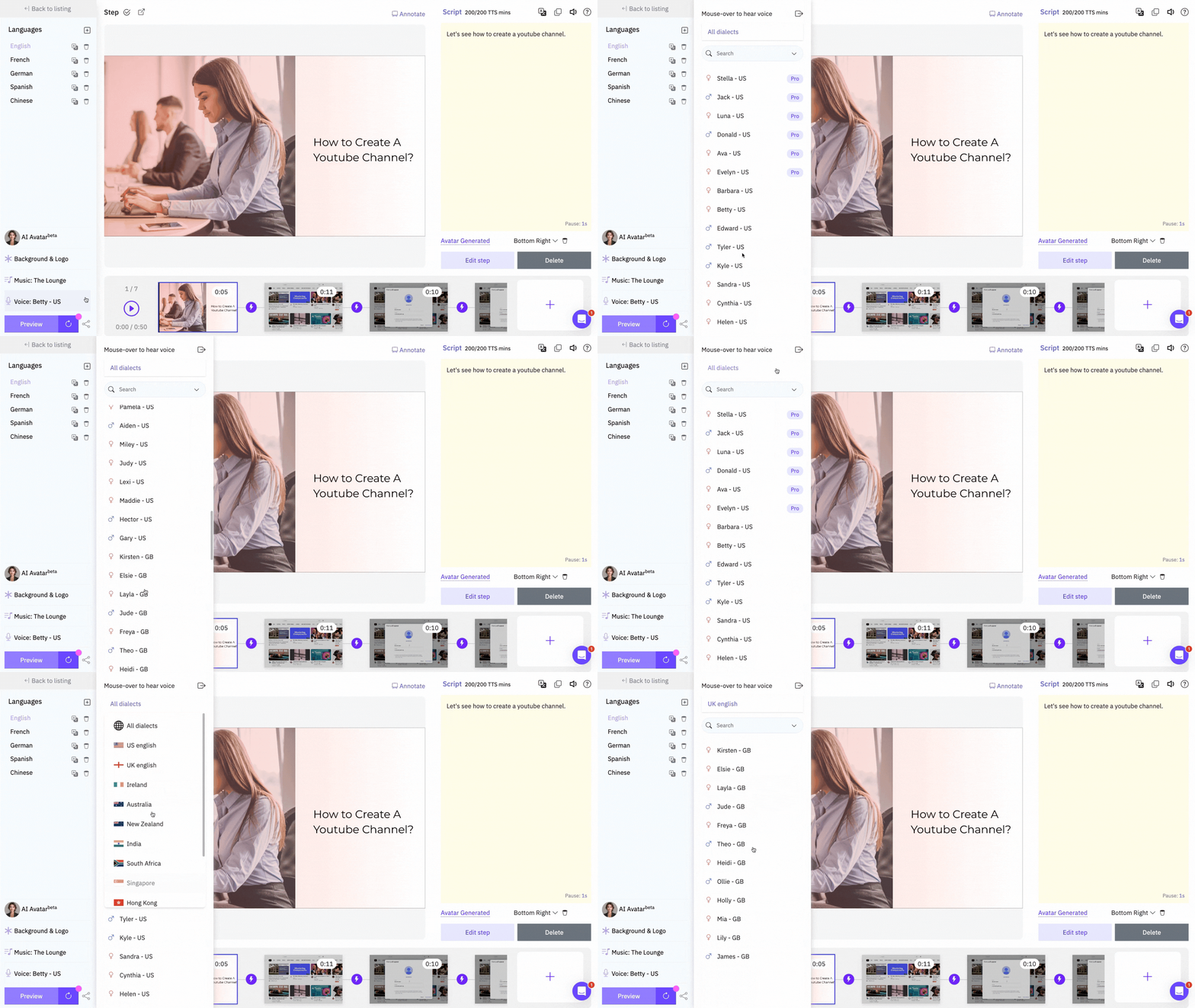
Check out this video guide on how to add an AI voice to your videos with WowTo.
Conclusion
Using AI voices well can turn basic screen recordings into engaging, easy-to-follow tutorials. The real impact comes from thoughtful application—choosing the right voice, placing narration where it adds value, keeping pacing clear, syncing audio with visuals, and avoiding common mistakes. As AI voice quality improves, creators who master these basics will stand out with tutorials that learners enjoy and trust. Start small by improving one area in your next video to boost clarity and engagement—and sign up to WowTo for free to start creating your videos with AI voice today.
