Repurposing Existing Help Docs Into How to videos: A Step-by-Step Workflow
You've done the hard work — detailed help docs, structured FAQs, step-by-step articles covering every corner of your product. So why are support tickets still piling up? Because most users don't read help docs. They skim, hit a confusing step, and open a support chat. Your documentation isn't failing because it's wrong — it's failing because text alone doesn't stick.
How-to videos change that. People retain information far more effectively when it's presented visually, and your existing help docs are already the best raw material you'll ever have. WowTo turns that foundation into engaging how-to videos — step by step, without a production team.
This guide walks you through an exact workflow for repurposing your existing help documentation into engaging how-to videos — step by step, without a production team.
Why help docs are the perfect foundation for how-to videos
Before you touch any tool, it helps to understand why this pairing works so well. A well-written help doc already has the bones of a great video script. It starts with a problem statement ("How do I reset my password?"), moves through numbered steps, and ends with an expected outcome. That's a video structure. You're not rewriting content — you're reformatting it.
There's also a strategic advantage: your help docs were written in response to real user pain points. That means every article you convert into a how-to video is already addressing something your users genuinely struggle with. You're not guessing at what content to create; your support history has already answered that. If you're new to why user documentation is so critical to great customer support, that context makes the case for this workflow even stronger.
Step 1: Audit your help docs before converting anything
Jumping straight into video production is a common mistake. A brief audit saves you hours of rework.
- Identify high-priority articles first. Pull up your support ticket data or help center analytics and look for the docs that get the most traffic or the topics that generate the most support requests. These are your highest-ROI conversions — if a video can deflect even a fraction of those tickets, it immediately justifies the effort.
- Categorize by video suitability. Not all docs make equally strong videos. Process-based docs ("How to set up X," "How to connect Y to Z") translate beautifully to screen recording walkthroughs. Pure reference docs (glossaries, data dictionaries, API specs) are less suited for video. Prioritize the procedural content first.
- Flag outdated visuals or steps. If an article references an old UI, converting it as-is will produce a misleading video. Mark these for a quick update before conversion, or plan to record fresh screenshots during the process.
Step 2: Structure the doc as a video script
A help article and a video script aren't quite the same thing, but the gap is smaller than most people think. Here's how to bridge it.
- Trim the preamble. Long introductory paragraphs that explain context work fine in written docs — readers can skim them. In a video, they become dead time before anything useful happens. Get to the action within the first 15–20 seconds.
- Rewrite steps as spoken instructions. The phrase "Users should navigate to the Settings panel" reads fine on screen, but sounds stiff when narrated aloud. Replace with "Go to Settings." Active, second-person voice works best for how-to video narration.
- Add a brief intro and a clear endpoint. A one-sentence video intro ("In this video, you'll learn how to [X] in under two minutes") and a defined ending ("That's all it takes — your integration is now live") give the video a proper shape and improve completion rates.
- Each help doc should map to exactly one video. If an article covers three separate tasks, split it into three videos. Short, focused how-to videos are easier to find, watch, and update over time. Common mistakes to avoid when making how-to videos are worth a read before you start scripting — many of the pitfalls happen at exactly this stage.
Step 3: Capture your screen (or use what you already have)
You have two routes here, and both work well.
- Option A: Open your product, follow the steps in your doc, and record your screen as you go. This approach produces the most current, accurate visuals. WowTo's Chrome extension lets you capture screen recordings directly and feed them into the video editor without any additional import steps. Before you hit record, these screen recording tips will help you avoid the small mistakes that make videos harder to watch.
- Option B: Use screenshots from the existing doc. Many help docs already contain annotated screenshots. These can be imported directly into a video editor as individual slides or steps — essentially turning your doc's images into video frames. This is especially useful when you're converting at scale and can't re-record every workflow.
The important thing is that your visuals match your current product UI. If your product has evolved since the doc was written, this is the moment to update those screenshots.
Step 4: Add a voiceover — no microphone required
This step is where many teams get stuck. Recording a human voiceover requires a quiet room, a decent microphone, and a confident speaker. Most support teams have none of these on standby.
AI voiceover removes that obstacle entirely. You paste your script, choose a voice that fits your brand's tone, and the narration is generated automatically. WowTo offers over 300 AI voices across 20+ languages, which also means you can serve a global user base without commissioning separate recordings for each language.
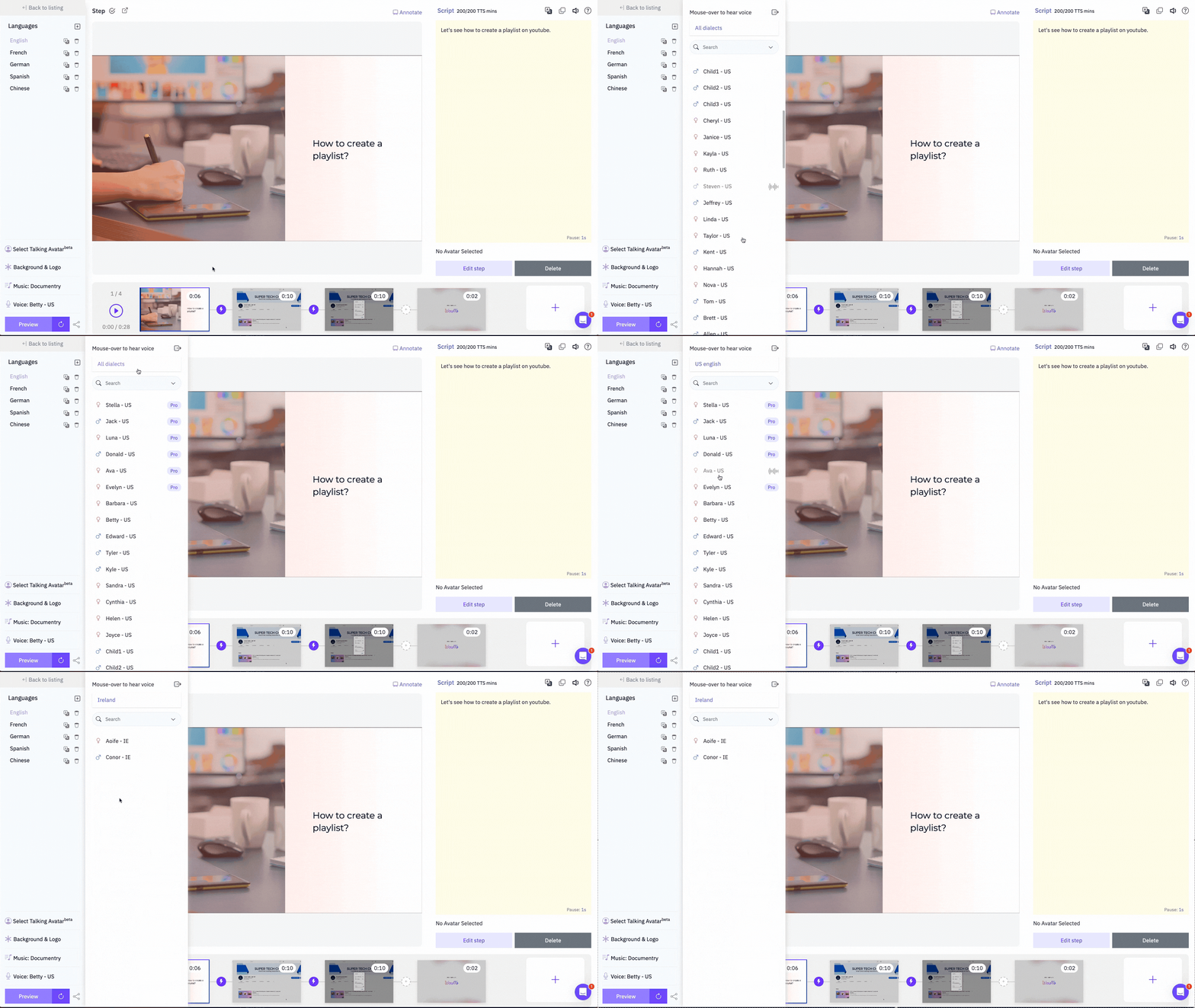
If you want to go deeper on this topic, WowTo's blog on AI voices vs. Human narrators for instructional videos breaks down exactly when synthetic voices outperform human recordings — and when they don't.
The key to a natural-sounding AI voiceover is editing the script for speech, not reading. Short sentences, natural pauses, and avoiding jargon all contribute to a voiceover that sounds intentional rather than robotic.
Step 5: Annotate for clarity
A screen recording alone tells the viewer what you're doing, but annotations tell them where to look and why it matters.
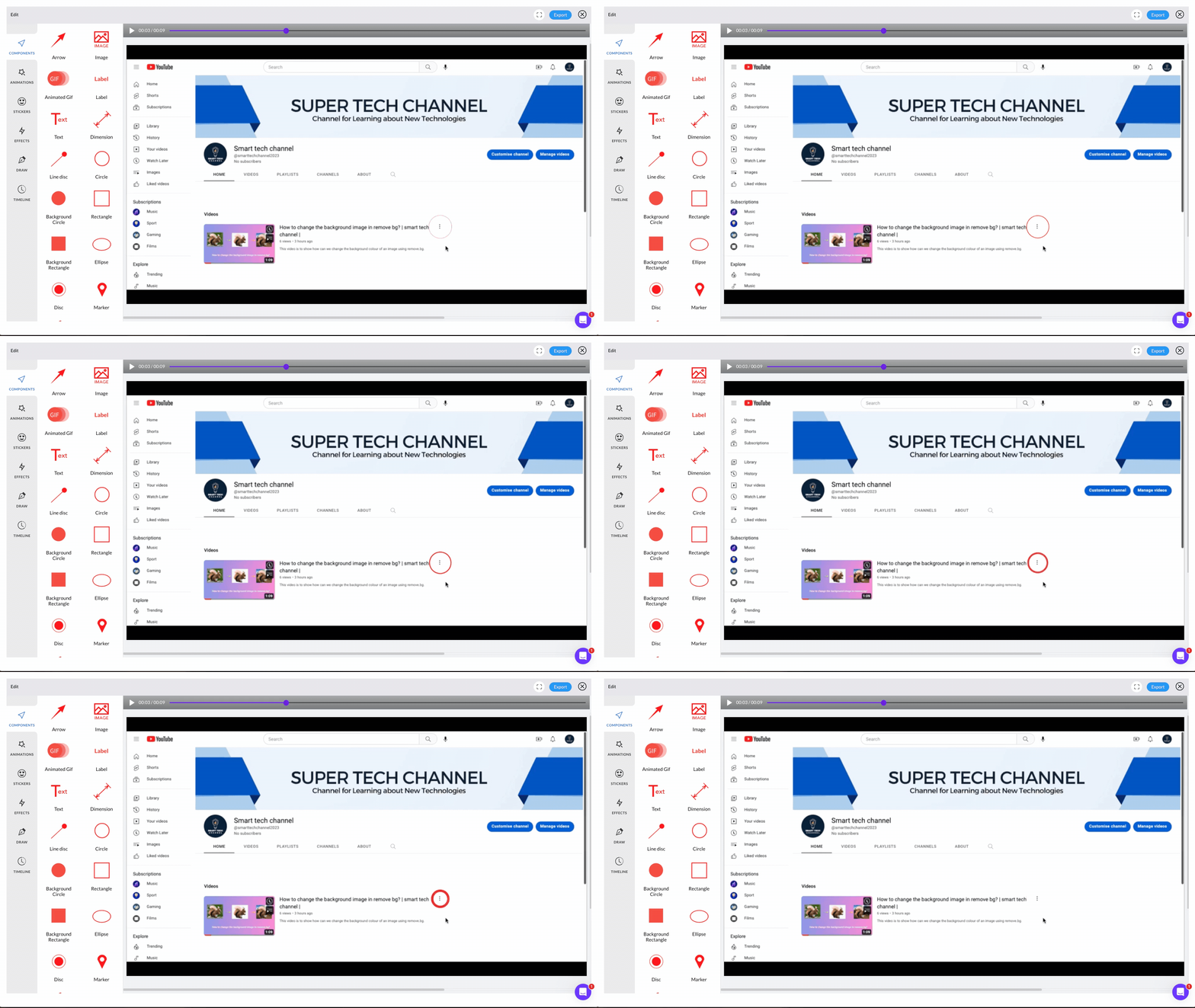
Effective annotations in a how-to video include:
- Click highlights: A visual ring or cursor emphasis that makes it obvious where you just clicked
- Arrow callouts: directing attention to a specific field, button, or section of the UI
- Text overlays: reinforcing a spoken instruction ("Enter your API key here") with an on-screen label
- Blur overlays: masking sensitive information like credentials or personal data before sharing
Keep annotations minimal. A cluttered screen with too many callouts is as confusing as no annotations at all. The goal is to reduce cognitive load, not add to it.
Step 6:Convert and host — where one-click changes everything
This is where a purpose-built tool like WowTo pulls significantly ahead of general video editors.
- Rather than going through the above steps manually for every article in a large help center, WowTo's one-click article-to-video conversion feature lets you paste or import a text-based help doc and generate a structured video from it automatically — complete with AI narration, step segmentation, and visual placeholders you can swap with actual screenshots.
- For teams with hundreds of help articles, this makes the difference between a months-long project and something achievable in a focused sprint.
- Once your videos are created, hosting them inside a video knowledge base keeps everything organized, searchable, and accessible under your own domain. WowTo's platform lets you structure videos into categories that mirror your existing help center architecture — so users moving from your text docs to your video library don't have to relearn the navigation. How to create a knowledge base for SaaS is a practical guide for building that structure the right way from the start.
Step 7: Surface the videos where users actually need them
Creating the video is only half the work. Getting it in front of users at the right moment is what drives results.
- Embed videos directly inside the original help docs. Text and video together are a powerful combination. Readers who prefer scanning get the written version; visual learners get the video. Both get served. This is especially effective for your highest-traffic articles.
- Use in-app video widgets. Surfacing a how-to video inside your product — contextually, when a user is on the relevant feature — drastically reduces friction. They don't have to leave the app to find help. WowTo supports in-app widget embedding specifically for this use case.
- Link from support ticket responses. When your team replies to a support ticket, attaching a relevant how-to video alongside the text explanation sets a new standard for reply quality — and teaches the user to self-serve next time.
- A dedicated video knowledge base gives users a place to browse and search all your how-to content. It also gives your SEO strategy a lift — video tutorials directly enhance your knowledge base SEO in ways that text-only help centers simply can't match.
Keeping your video library fresh over time
- One of the biggest fears teams have about creating how-to videos is maintenance. "What happens when we update the UI?"
- The good news: you don't have to re-record the entire video. With WowTo's editing workflow, you can swap out individual steps or screenshots without rebuilding the video from scratch. If only one screen in a five-step process changed, you update that one frame, regenerate, and republish — in minutes.
- The same logic applies to your underlying help docs. When a doc gets updated, treat the corresponding video as a parallel asset that needs a quick visual refresh, not a full re-record. For teams thinking about scaling this process across a large content library, scaling instructional videos for SaaS covers the AI-driven strategies that make maintenance sustainable as your product evolves.
Conclusion
Your help docs aren't a content problem to solve from scratch — they're an underutilized asset sitting in your knowledge base right now. With the right workflow, every article you've already written becomes the foundation for a how-to video that serves users more effectively, reduces support load, and builds a more accessible product experience.
The workflow is straightforward: audit your docs, adapt them for spoken delivery, record or import your visuals, add an AI voiceover, annotate for clarity, and host them in a structured, searchable video knowledge base. Repeat at scale.
If you're ready to start converting your help docs into how-to videos without a production team or complicated tooling, sign up for WowTo free and see how fast your first conversion takes.
